
Why WordPress email fails
Out of the box WordPress sends mail with PHP's mail() function, which hands the message to whatever the server has installed and reports success the moment it does. Nothing waits for the receiving server's answer. So password resets, order confirmations and contact-form messages "send" as far as WordPress can tell, and then one of these happens:
- The server has no working mail transport at all. Common on containers, cheap VPSs and some managed hosts. The message goes nowhere.
- The message is sent but rejected or junked. It comes from a shared IP with a poor reputation, with a From address at your domain that your domain's DNS never authorised. Receiving servers treat that as forgery, which is what it looks like.
- A plugin changed the From address to something that does not match your domain, breaking authentication even when everything else is right.
- Outbound port 25 is blocked by the host, which is nearly universal now.
The fix has three parts: send through an authenticated SMTP connection (or an email API), publish DNS records that authorise that sender for your domain, and keep a log so you can see what happened to each message rather than guessing.
Step 0: prove what is and is not being sent
Install Dragon Email Log first. From then on every message WordPress tries to send is recorded under Tools, then Email Log with recipient, subject, time, delivery status and the plugin that sent it. Trigger a password reset and look. If the message is logged as sent but never arrives, the problem is delivery or reputation. If it is logged as failed, the transport is broken. If it is not logged at all, the plugin that should have sent it never called wp_mail, which is a different bug entirely.
Step 1: choose what will actually send the mail
You have two sensible options.
A transactional email service such as Postmark, Amazon SES, Mailgun, Brevo or Resend. Built for exactly this, cheap or free at WordPress volumes, with the reputation and reporting a shared host cannot give you. This is the right answer for any site that sends order emails or has more than a handful of users.
Your own mailbox provider such as Google Workspace or Microsoft 365. Fine for a small site. Google needs an app password rather than the account password, and both cap daily sends at mailbox-scale limits.
Either way you end up with a hostname, a port, a username and a password (or token).
Step 2: configure SMTP
Install Dragon SMTP and open Settings, then SMTP, then Connection. Enter the host, port 587 with TLS for almost every provider, and the credentials. The password is stored encrypted in your database. Set a From address at your own domain and tick the option to force it, so no plugin can send as something else. That single setting fixes a surprising share of "goes to spam" problems, because the From domain is what DMARC checks.
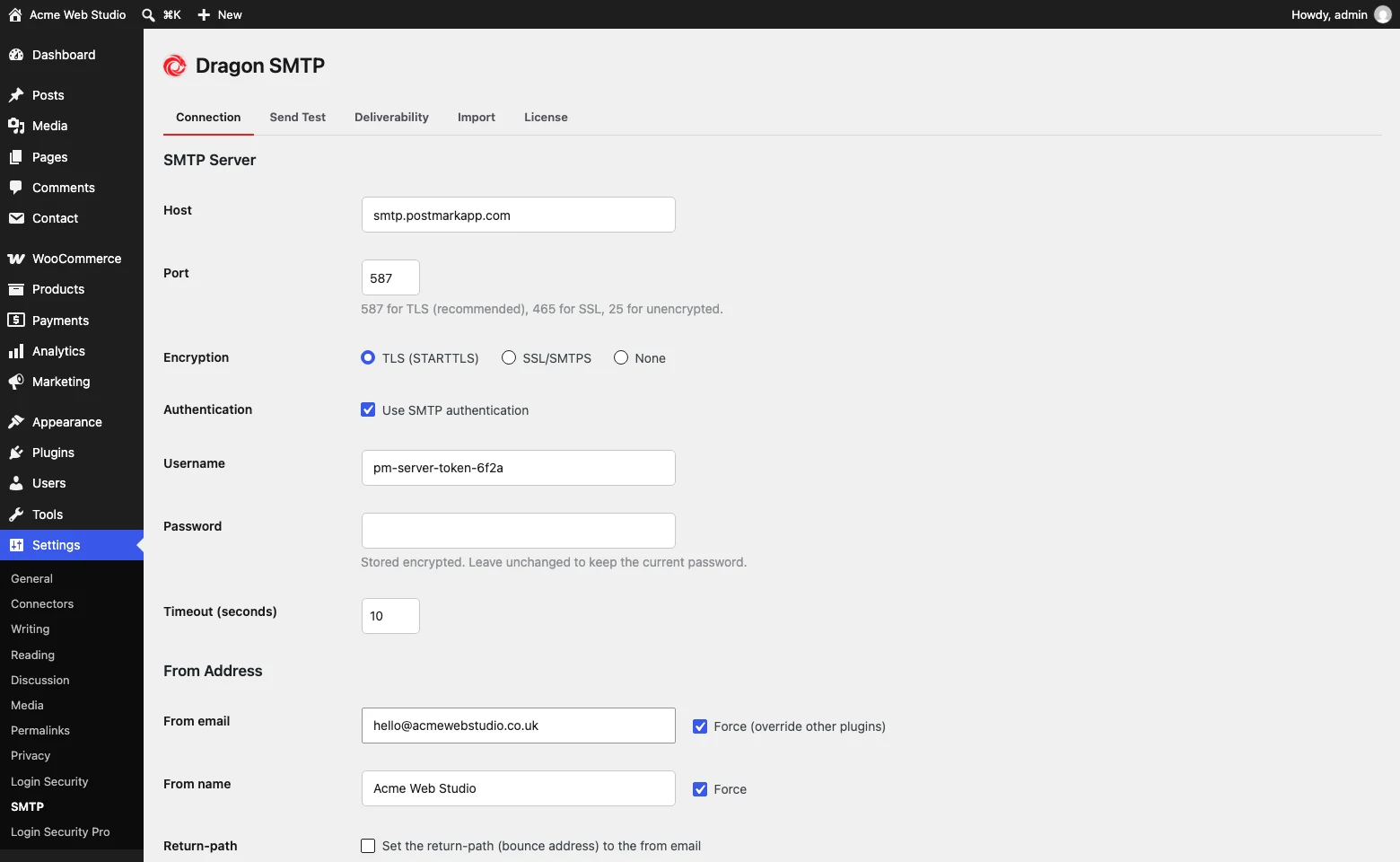
If you are moving from another SMTP plugin, the Import tab detects its settings and copies the host, port, encryption and From address across. Enter the password fresh.
Sites managed in code can set DRAGONSMTP_SMTP_HOST, DRAGONSMTP_SMTP_PASS and the rest as constants in wp-config.php, which locks those fields in the UI and keeps secrets out of the database.
Step 3: send a test and read what the server said
Open Send Test and send yourself a message. The result is not "sent" or "failed": it is the full SMTP conversation, line by line, with credentials redacted. That transcript is the difference between fixing this in two minutes and fixing it in two days.
What the common replies mean:
| Server said | It means | Do this |
|---|---|---|
535 Authentication failed | Wrong username or password, or Google without an app password | Regenerate the credential at the provider; for Gmail create an app password |
550 Relay access denied or 553 | The server will not send for that From address | Use a From at the domain the account is verified for, or verify the domain at the provider |
Connection refused or a timeout before any reply | The host blocks the port | Try 465 with SSL; if that also fails, the host blocks outbound SMTP: see below |
SSL certificate verify failed | Wrong encryption for the port | 587 is TLS (STARTTLS), 465 is SSL. Do not disable verification |
421 Too many connections or 4xx rate limit | Provider throttling | Wait, then lower burst volume; a transactional service has higher limits |
250 OK but the mail never arrives | Delivered to the provider, then junked downstream | Fix DNS in step 4 and check the spam folder |
Step 4: authorise your domain with SPF, DKIM and DMARC
A correctly configured connection still lands in spam if your domain's DNS does not vouch for the sender. Open the Deliverability tab. It reads your domain's live DNS and tells you, in plain language, what is missing:
- SPF is a TXT record on your domain listing who may send for it. Your provider gives you an
include:value. One SPF record per domain, never two. - DKIM is a signature the provider adds to each message, verified against a public key at
<selector>._domainkey.yourdomain.com. The tab probes the common selectors and shows the key when it finds one. Add the CNAME or TXT the provider gives you. - DMARC is a TXT record at
_dmarc.yourdomain.comthat tells receivers what to do when SPF or DKIM fails and where to send reports. Start withv=DMARC1; p=none; rua=mailto:dmarc@yourdomain.comto observe, then move top=quarantineonce you know every legitimate sender is authenticated.
DNS changes take minutes to hours to propagate. Re-run the check afterwards, then send another test to a Gmail address and use "Show original" to confirm all three show PASS.
Step 5: keep the log on
Leave Dragon Email Log running. Set a retention period that suits the data (logged messages can contain personal information) and turn off body logging if you only need the envelope. The next time someone says "I never got the email", you will know in ten seconds whether it was sent, to which address, and with what result. The preview blocks remote images by default, so opening a logged message never tips off a sender.
When the host blocks SMTP entirely
Some hosts block every outbound SMTP port, and no setting changes that. Dragon SMTP Pro sends through the providers' HTTP APIs instead (Amazon SES, Postmark, Mailgun, Brevo, Resend), which use port 443 like any web request, and adds automatic failover to a backup connection, duplicate-safe retries and failure alerts. An SMTP Pro licence also activates Email Log Pro, which adds one-click resend of failed messages and export.
Related reading
Emails that are scheduled rather than sent immediately (digests, abandoned-cart reminders, subscription notices) depend on WP-Cron as well as on delivery. If those are the ones going missing, read WordPress cron not running next.
A checklist for the end
- Email Log installed and showing messages as sent
- SMTP or API connection saved, test transcript ends in
250 - Forced From address at your own domain
- SPF record includes your provider, and there is only one SPF record
- DKIM record published and showing in the Deliverability tab
- DMARC record published, at least
p=nonewith a reporting address - Test to Gmail shows SPF, DKIM and DMARC all PASS in "Show original"
- Retention set on the log